If you can't copy and paste nodes in a scenario, your browser likely doesn't allow clipboard access for the page.
Check the clipboard permission in Chrome
Open the scenario.
Click the lock or View site information icon next to the URL.
Open Site settings.
Find Clipboard.
Allow the site to see text and images on your clipboard.
Refresh the page and try again.
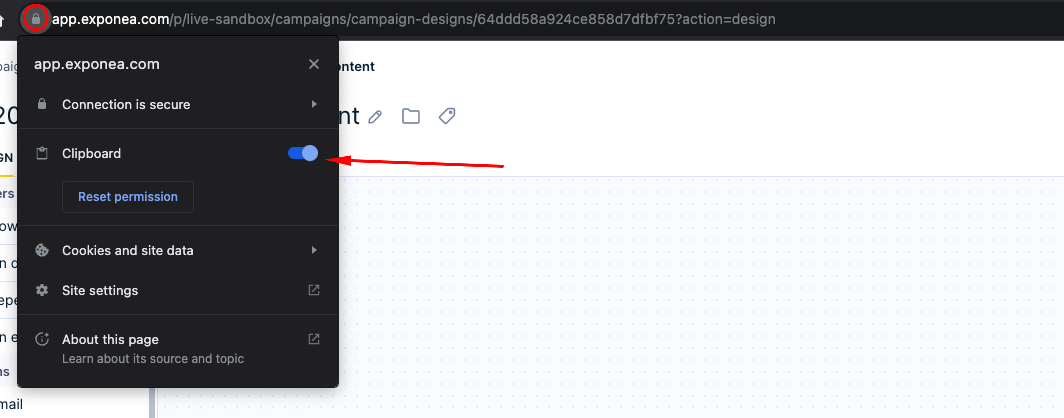
If you don't see the clipboard permission
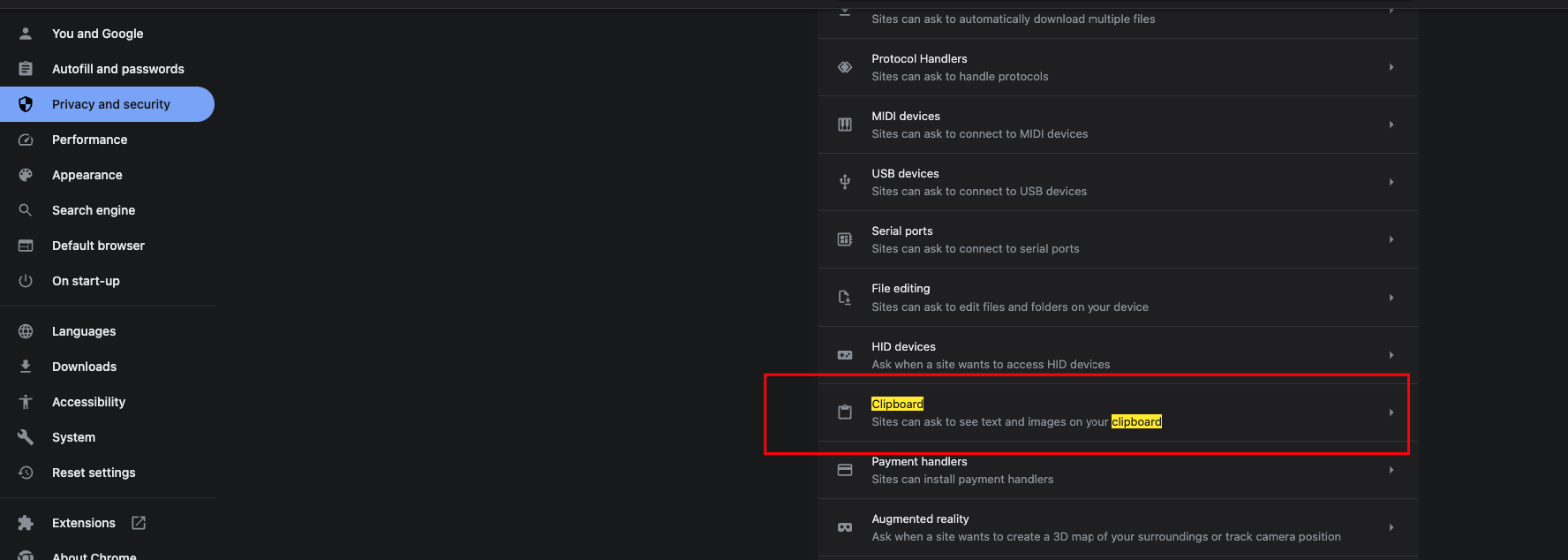
Open your browser settings.
Go to Privacy and security.
Open Site settings.
Find Clipboard under the permissions section.
Make sure the site is allowed, then refresh the scenario.
If you are using Firefox
Firefox doesn't use the same persistent clipboard permission model as Chromium-based browsers for web pages. Because of that, copy and paste in a web app may behave differently or may require an extra browser prompt.
If possible, test the same action in Google Chrome or another Chromium-based browser first.
If the issue continues
If clipboard access is allowed and copy and paste still don't work:
Reload the page and try again.
Test the same action in another browser.
If the issue is intermittent or still unresolved, capture a HAR file and a screen recording before contacting Support.
Notes
This example is based on Google Chrome.
Other Chromium-based browsers usually have a similar setup.
If the issue happens only in one browser, the cause may be browser-specific behavior rather than the scenario itself.
If browser permission changes don't resolve the issue, the problem may lie elsewhere in the application.