Use this guide to find why an event doesn't trigger a scenario. Work through the checks in order.
Check imported events
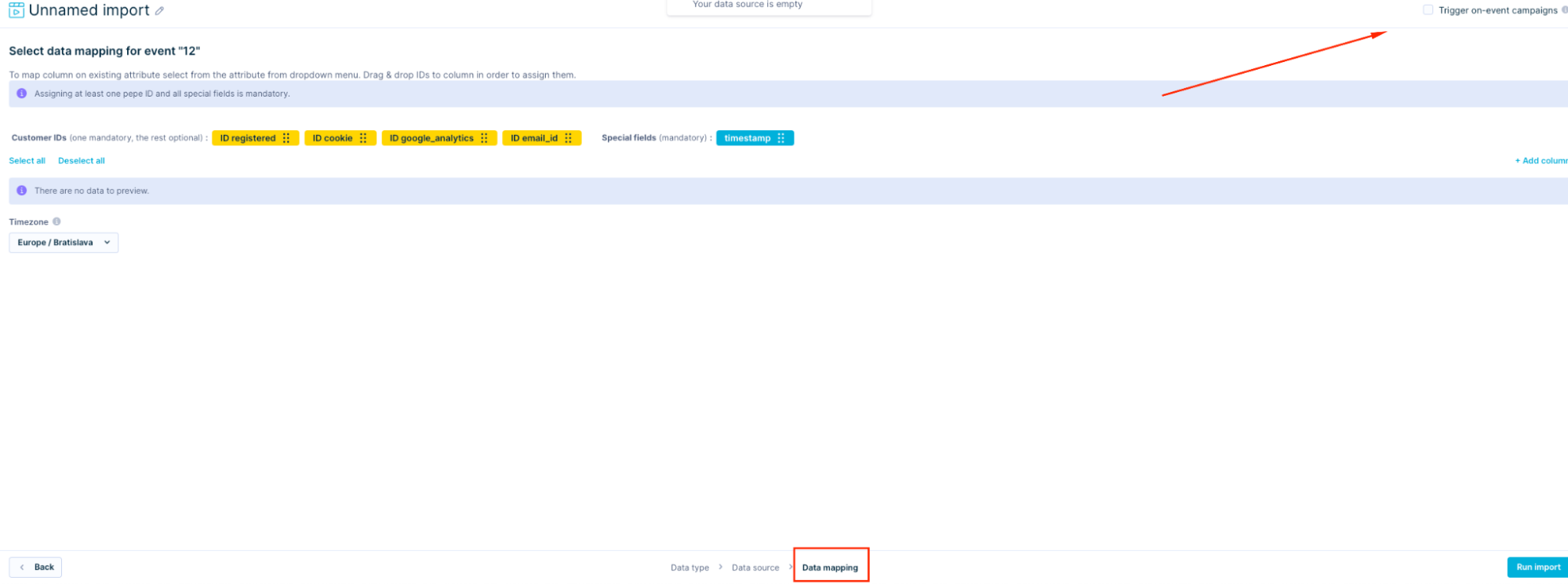
If an imported event should trigger a scenario, enable Trigger on-event campaigns in the import that contains the event data.
This option applies only to future imports. Enabling it doesn't activate previously imported events.
Also, confirm that the imported event matches the conditions in the scenario trigger.
Check event timestamps
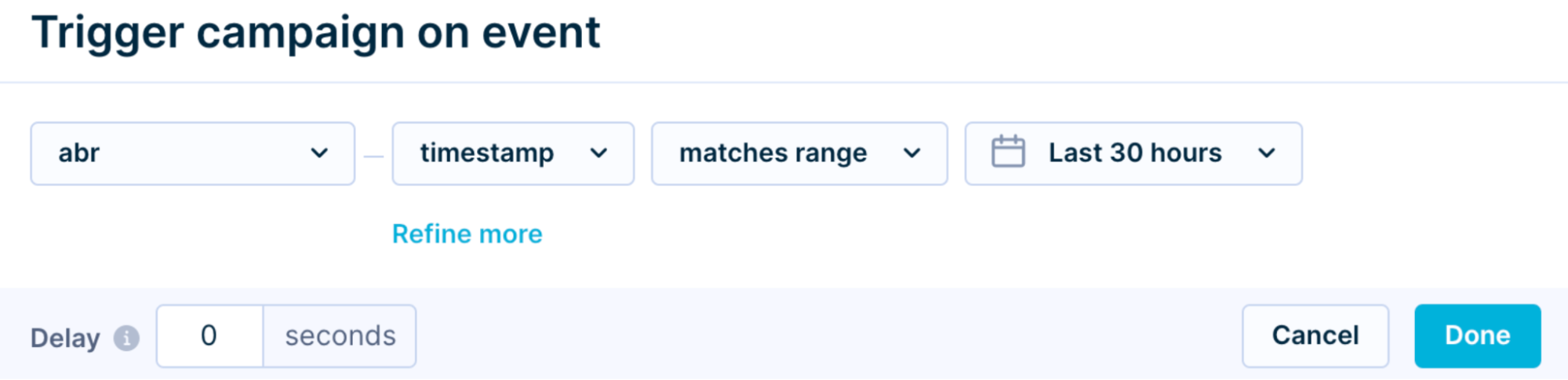
You can import events with current, past, or future timestamps. The timestamp can affect whether an event matches an On event trigger with a date filter.
An On event trigger receives the event when it arrives on the platform, regardless of its timestamp.
Without a date filter, the event can trigger the scenario after it is associated with the customer profile.
With a date filter, compare the filter with the event timestamp. Confirm the expected behavior for future timestamps before troubleshooting further.
For example, an abr event with a future timestamp might not match an On event trigger if the date filter doesn't match the event timestamp.
Reimporting the same event results in deduplication. A deduplicated event can still trigger a scenario if it meets the trigger conditions.
A future-timestamp event might not appear in the customer profile until that timestamp is reached.
Check scenario-added events
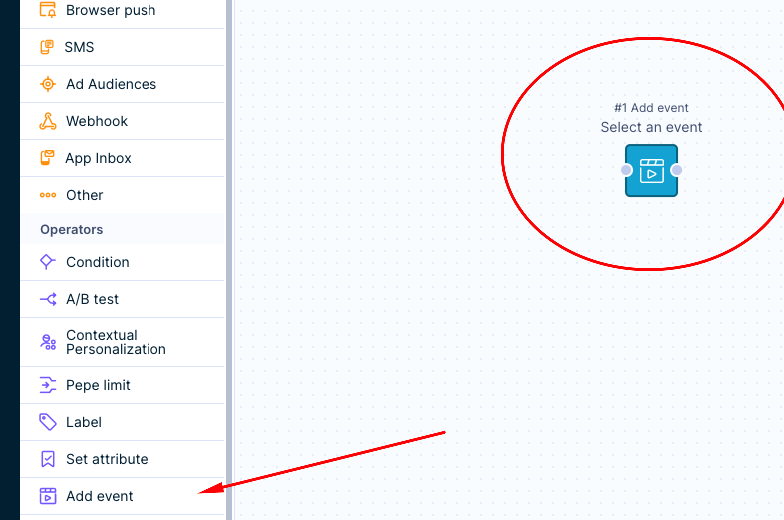
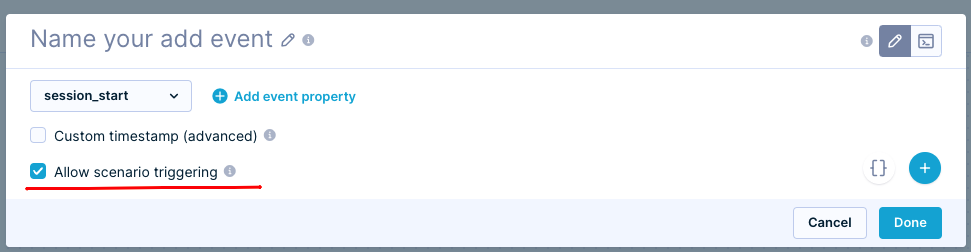
If a scenario adds the event that should trigger another scenario, enable Allow scenario triggering for that event.
If this option is disabled, the event might not trigger a scenario even when it meets the trigger conditions.
Confirm that the scenario is active
The scenario must be active when the trigger event occurs. An inactive scenario doesn't fire its triggers.
Confirm that the scenario is enabled and running.
Confirm that the trigger is active
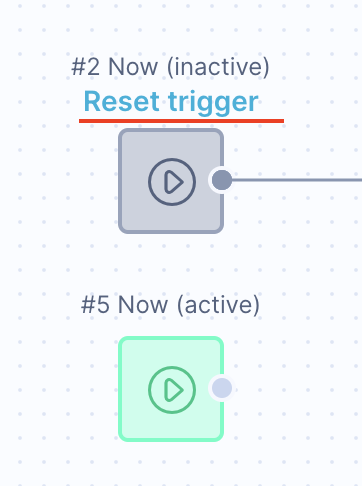
Activate the trigger before you launch the scenario. Inactive triggers appear grayed out.
To activate an inactive trigger, click Reset trigger.
Review the trigger conditions
A change to the trigger node conditions can prevent an event from triggering the scenario.
Compare the current trigger conditions with the event data at the time the event occurred. Update the conditions or event data so that they match.
Validate the event payload
Check the event payload for inconsistent data, invalid values, or data type mismatches.
For example, verify that a list was not imported as a string. The payload structure must match the trigger conditions and the expected data format, especially when events come from different sources.
Check trigger limitations
Some events and nodes cannot trigger scenarios. Review the Scenario triggers documentation for the current trigger limitations.
Resolve the “No longer exists” error
A node after an On event trigger can return a No longer exists error for profiles created by the trigger event when the delay is less than 30 seconds.
If you see this error, increase the trigger delay. This gives the platform more time to create the customer profile before the scenario continues.
Confirm that the issue is trigger-related
A scenario can trigger successfully while a customer profile stops at a later node.
Review the scenario flow and check whether:
A filter node before the expected active node prevents the profile from continuing.
A limit node has reached its limit.
The profile appears in scenario history and reaches the expected node.